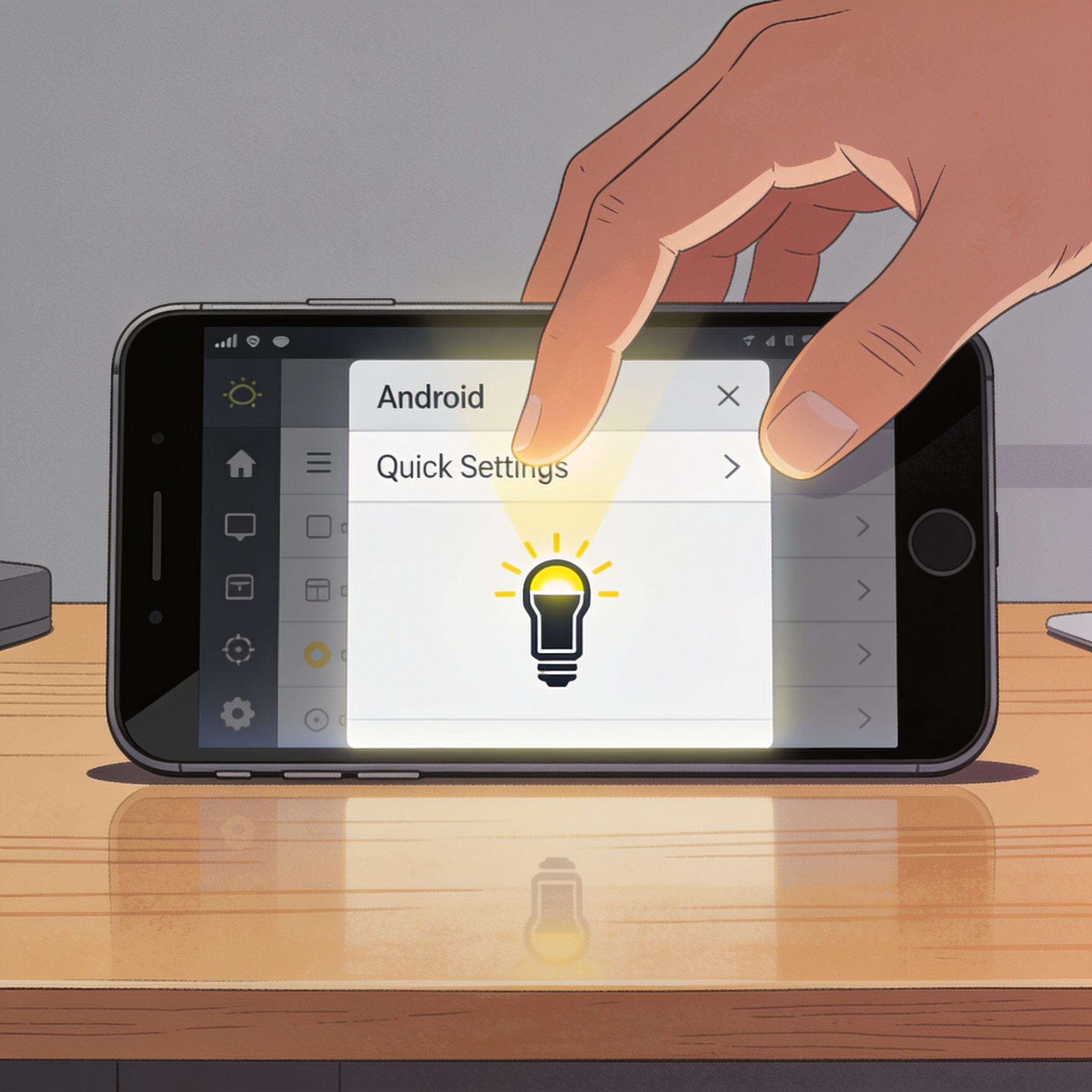
You don’t need to unlock your Android phone to switch on the flashlight. Both Samsung Galaxy and Google Pixel phones offer lock-screen shortcuts and quick-access options for emergency use. You can also use voice commands or customize gestures to turn on the flashlight.
Google Pixel users can find the flashlight in Quick Settings by swiping down from the top and tapping the flashlight icon. If it isn’t visible, edit the icons on the first page by tapping the pencil, adding the flashlight, and moving it to the top. Quick Tap gestures can be enabled under Settings > System > Gestures > Quick Tap to start actions, allowing you to toggle the flashlight with a double-tap on the back of the device. You can also add a flashlight shortcut to the lock screen by long-pressing the lock screen, selecting Customize, and adding the flashlight to the Shortcuts.
Samsung Galaxy devices let you access the flashlight from the Quick Panel, swiping down from the top corners of the screen. If not visible, edit the panel by tapping the kebab or pencil icon to rearrange or add the flashlight. You can replace one of the default lock-screen buttons with the flashlight by long-pressing on the lock screen and selecting a replacement option. If needed, adjust settings under Settings > Lock Screen & AOD > Enable Touch and Hold to Edit.
Third-party apps may offer shake-to-turn-on flashlight features, though built-in options focus on Quick Settings and lock-screen customization. Voice activation requests, such as asking Google Assistant to turn on the flashlight, are also supported for hands-free use.

Leave a comment
Your comment appears after you verify your email. We replace % $ { } [ ] < > with periods and display the text safely.
Published comments (0)
No comments yet. Start the conversation.