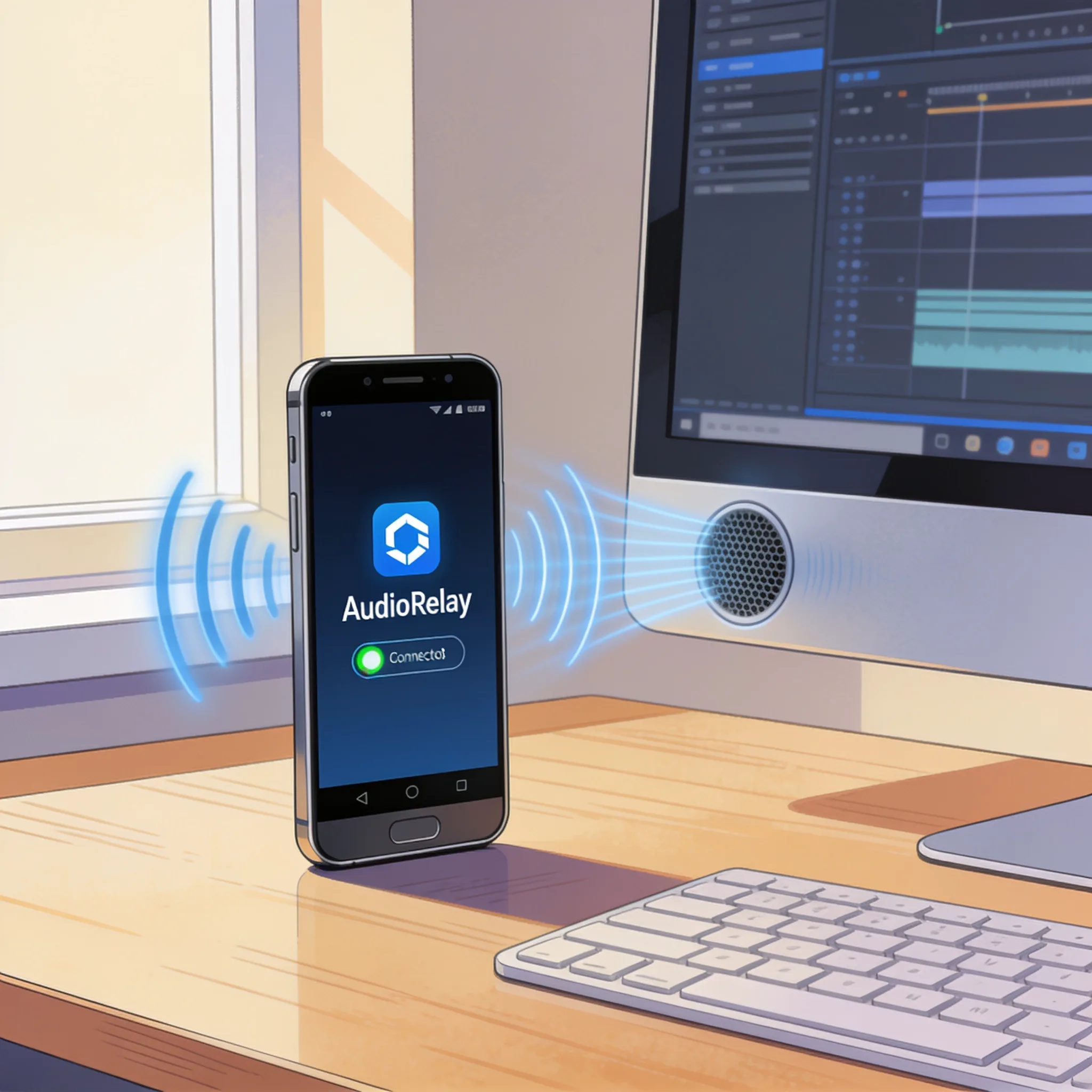
Users can turn an old Android phone into a functional computer speaker by installing the AudioRelay application on both their PC and mobile device. This method allows the phone to output audio from a Windows, Mac, or Linux computer through its built-in speakers, offering a temporary solution when primary computer speakers fail.
The process relies on streaming audio over a local Wi-Fi network rather than Bluetooth pairing. Most Android phones are configured to act as Bluetooth sources rather than receivers, making direct wireless pairing difficult without third-party software. The AudioRelay app bridges this gap by capturing system audio on the computer and transmitting it to the phone.
Setup Requirements
To begin, users must install the AudioRelay app on both the computer and the Android device. Both devices need to be connected to the same Wi-Fi network. On Windows and Linux systems, the setup involves simply opening the application on both ends. macOS requires an additional step: installing a virtual audio driver such as BlackHole, since the operating system does not allow apps to capture system audio directly without this intermediary tool.
Once installed, users launch the app on both devices. On the Android phone, they select the computer name listed under the Server section. On the PC, the Android device should appear under Connections. Playing any audio on the computer will then route through the phone's speakers.
For Mac users, the BlackHole virtual device must be selected within the AudioRelay Server settings and set as the sound output in Audio MIDI Setup. Linux users may need to choose a device starting with Monitor if the default selection fails to produce sound.
Reducing Audio Lag
Audio lag or choppy playback often results from buffer settings or network interference. A smaller buffer size reduces delay but increases the risk of choppy audio, while a larger buffer smooths playback at the cost of latency. Users can adjust these settings within the Player settings menu, choosing between Low or Medium buffer options.
Using a wired connection provides the most stable performance. Enabling USB tethering connects the phone to the computer via cable, bypassing potential Wi-Fi congestion. To activate this, users connect the phone via USB, open the AudioRelay app, navigate to Settings, and toggle on USB tethering before selecting the computer again.
Network conditions also impact performance. Connecting both devices to a 5GHz Wi-Fi band improves streaming quality compared to 2.4GHz. Turning off Bluetooth helps reduce interference since both technologies operate on the same frequency band. Additionally, users can enable Exclusive audio mode in the Player tab to prevent other apps from pausing the stream.
The free version of AudioRelay includes advertisements and limits connection time. A Premium subscription costs approximately $1 per month, removing ads and unlocking features like custom buffer settings, higher-quality uncompressed audio, and multi-device streaming.
What it means
This workaround offers a practical way to extend the life of older Android phones that might otherwise sit unused. It is particularly useful for users experiencing sudden speaker failure on their desktop or laptop who need an immediate replacement. However, the experience depends heavily on network stability and device compatibility, especially on macOS where extra configuration is required.
Users should expect some level of latency even with optimized settings, making this solution better suited for casual listening rather than professional audio work or gaming. The reliance on third-party software also introduces variables regarding privacy and data usage, though the article does not specify what data the app collects.
Would you try using your old Android phone as a computer speaker, or do you prefer buying dedicated external speakers?