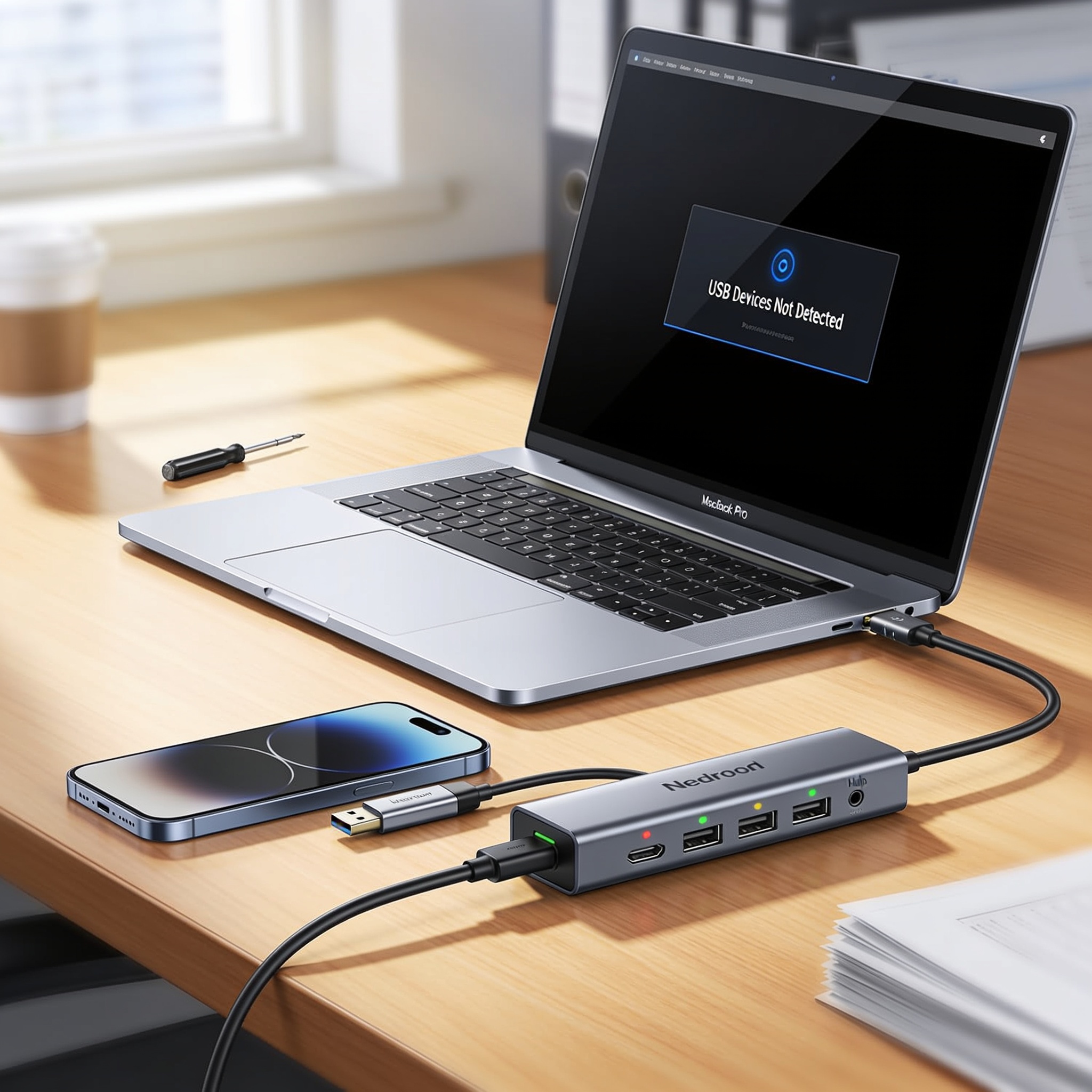
Mac users frequently encounter situations where USB accessories fail to connect or appear in the system despite being plugged in. This issue stems from a combination of macOS security protocols, hardware limitations, and physical wear on cables or ports.
Permission Settings Block Access macOS requires explicit user permission for new accessories to connect as a security measure against malware injection. If a user previously declined a permission prompt, the device will not transmit data even though charging may still function. Users can resolve this by unplugging and replugging the accessory to trigger the permission dialog again. Alternatively, navigating to Apple menu > System Settings > Privacy & Security > Accessories allows users to set preferences for asking about new accessories, automatically allowing them when unlocked, or always allowing connections without prompting.
Power Supply and Port Issues Some USB devices require more power than a standard Mac port provides. When this occurs, macOS typically displays a warning message indicating insufficient power. In such cases, connecting a powered hub or using a separate power cable for the accessory is necessary. If no external power source exists, the USB port itself may be failing to deliver adequate voltage. Testing alternative ports on the Mac or connecting directly without intermediate hubs or docks can isolate whether the issue lies with the port or the peripheral chain.
Physical Damage and Debris Lint, dust, and grime accumulation inside USB ports often obstructs connectivity. Bent pins or damaged cables also prevent proper communication between the Mac and the accessory. Visual inspection should reveal signs of physical damage such as browning wires or exposed conductors, which indicate a fire hazard requiring immediate replacement. Cleaning ports with compressed air or a soft-tipped tool can remove debris that blocks connection.
Software Updates and Compatibility Outdated macOS versions or missing driver updates can interfere with accessory detection. Ensuring the operating system is fully updated via Apple menu > System Settings > General > Software Update helps resolve compatibility bugs. Some peripherals rely on proprietary software that must be installed separately through the Mac App Store or manufacturer websites. Additionally, external drives and cards must use file systems compatible with macOS, specifically APFS, FAT, or ExFAT.
What it means Users who rely on USB accessories for daily tasks face interruptions when these devices fail to register. The most common causes involve simple configuration changes rather than complex hardware failures. Adjusting privacy settings or cleaning ports resolves many incidents without requiring professional assistance.
However, persistent power warnings or complete invisibility of devices in System Information suggest deeper hardware problems. These scenarios may necessitate contacting Apple support or replacing damaged components. Until manufacturers standardize power delivery across all USB implementations, users should expect occasional troubleshooting requirements.
Would you prefer Mac to automatically allow all USB connections without prompts, or do you value the security step of manual approval?