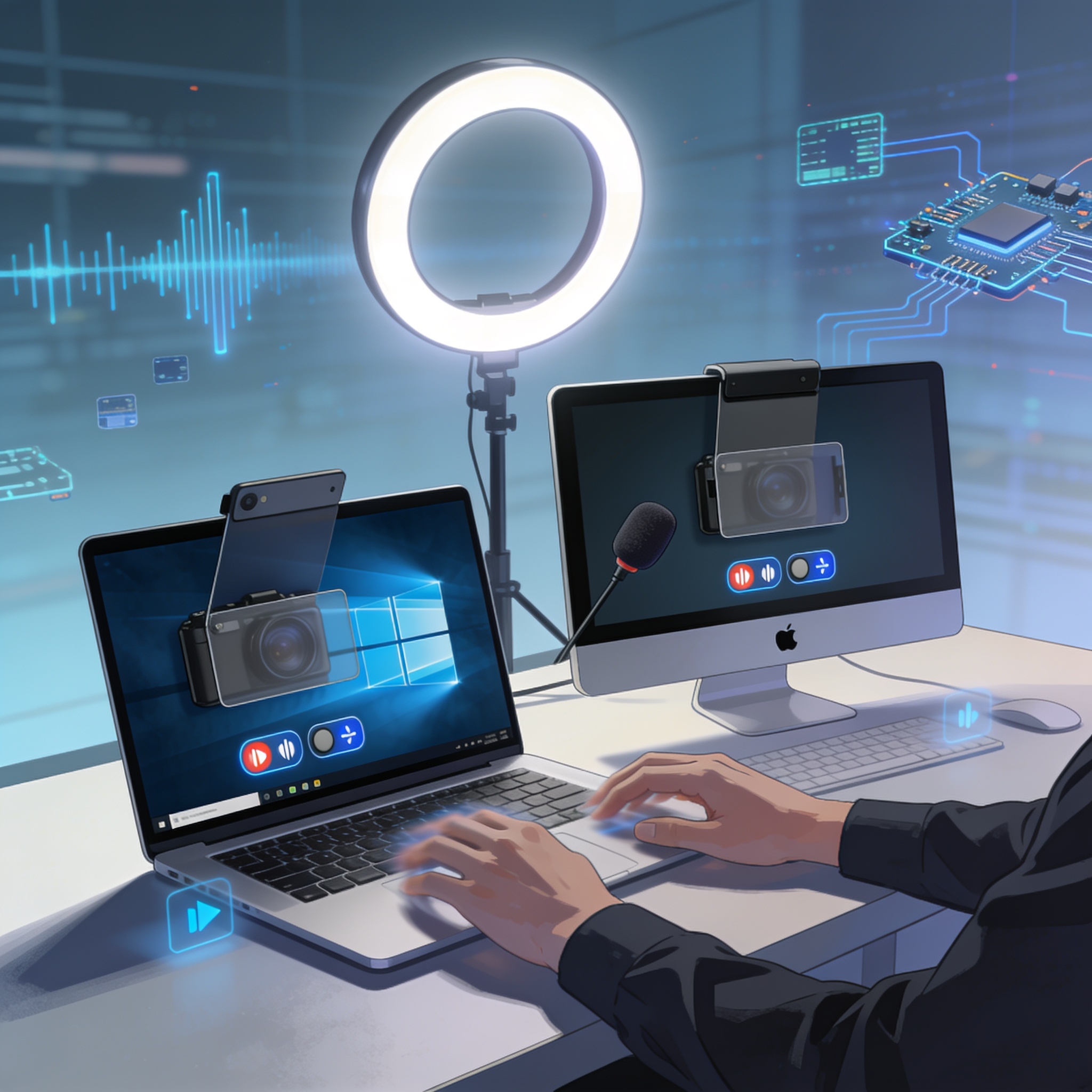
PC users frequently encounter camera and microphone failures that disrupt video meetings and calls. These issues often stem from simple oversights rather than hardware malfunctions, according to a recent troubleshooting guide published by Engadget.
The first step in resolving these problems involves verifying physical equipment status. Some computers include lens blinds or mute switches that may be accidentally engaged. External accessories require checking their cables, switches, and buttons for proper connection.
Operating system settings also play a critical role. Windows 11 users can navigate to Settings > Bluetooth & devices > Camera for video input verification. Audio input adjustments occur through Settings > System > Sound. The guide recommends setting microphone volume between 80 to 100 percent, as low volume settings commonly prevent others from hearing the user.
Mac users access camera controls through app-based menus, while microphone adjustments happen via Apple menu > System Settings > Sound > Input. Both platforms require granting application permissions for camera and microphone access. Windows 11 allows per-app toggling through Settings > Privacy & security > Camera or Microphone. Mac equivalents exist under Apple menu > System Settings > Security & Privacy.
Application-specific settings often cause persistent issues. Meeting applications like Zoom may default to disabling inputs even when system permissions are granted. Users should verify camera and microphone allowances within the meeting prompt before joining sessions.
Software updates address many compatibility problems. Windows Update handles driver releases separately, while macOS bundles them into general software updates. Communication applications require updating to their latest versions on both platforms. GPU drivers may need updating for visual output issues, though this typically affects only the local display.
Device Manager provides advanced troubleshooting options on Windows systems. Expanding Cameras or Audio inputs and outputs sections reveals hardware details. Right-clicking a device and selecting Properties > Driver tab offers an uninstall option. Windows automatically reinstalls drivers upon reboot, though manual downloads from manufacturer websites remain necessary if automatic reinstallation fails.
What it means
These troubleshooting steps apply to anyone using personal computers for remote communication. Video conferencing has become essential for professional interviews, news reporting, and daily business operations. Simple configuration errors can prevent participation in important meetings without requiring technical expertise or service visits.
Users affected include job applicants conducting virtual interviews, professionals attending client calls, and media contributors participating in expert discussions. The uncertainty lies in whether specific hardware defects exist alongside configuration problems, which would require replacement rather than adjustment.
Questions for readers
Have you experienced camera or microphone issues during an important video call, and what solution worked for you?